
After upgrading Veeam Backup for Microsoft 365 to 8.2.0.2202 (P20251031), a SharePoint site backup error message appeared.
The error message is: “The response status code does not indicate a partial response: 200.”
Veeam support noticed that the issue is mostly caused by downloading files in ranges, since it has been identified. You need to open a ticket with the Veeam support engineers, and they will send a bug-fix compression file to resolve the issues. Please follow the steps we recommend for this issue.
1.Download the Fix file.

2.Ensure that no jobs are running before proceeding with the installation.
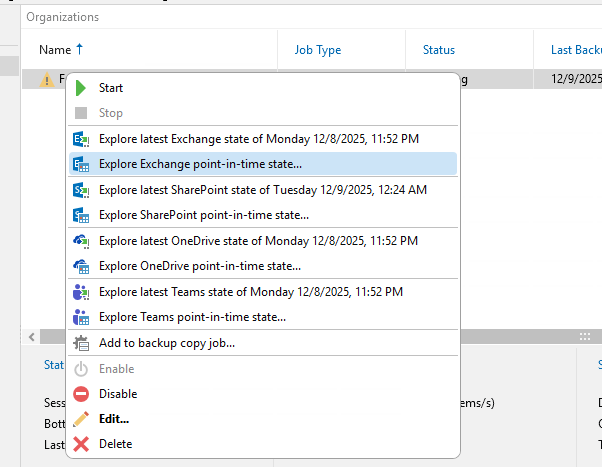
3.Update the controller using VeeamBackupMicrosoft365_8.2.0.2512_20251112.msp.

Note:
Don’t double-click files to install them, it will happen the setup wizard ended prematurely error.

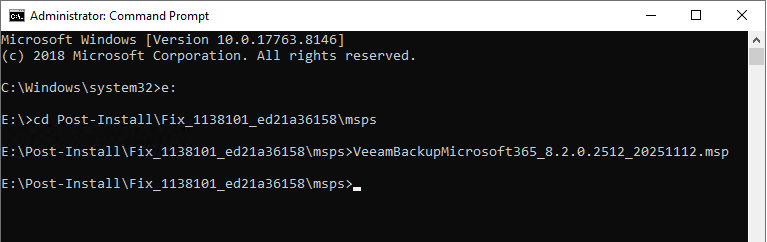
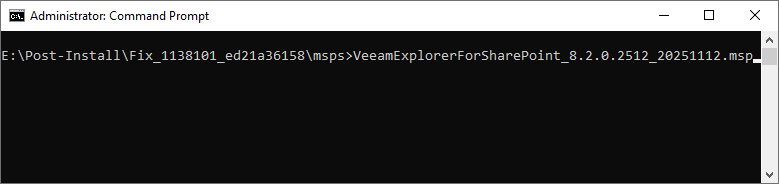
4.Open command prompt Run as Administrator.
5.Run VeeamBackupMicrosoft365_8.2.0.2512_20251112.msp.
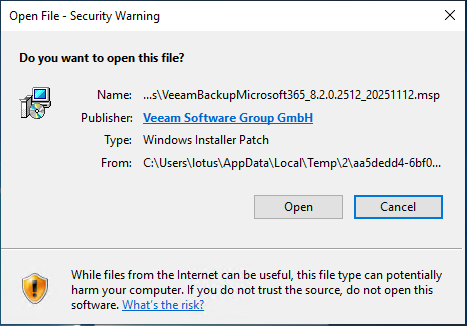
6.Click Open on the Security Warning page.
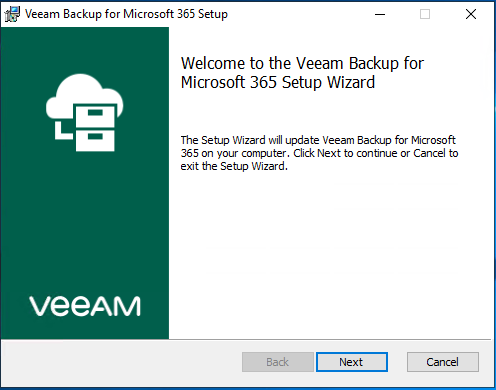
7.Click Next on the Welcome page.
8.Click Update on the Ready to update Veeam Backup for Microsoft 365 page.

9.Click Finish on the Completed the Veeam Backup for Microsoft Setup Wizard page.
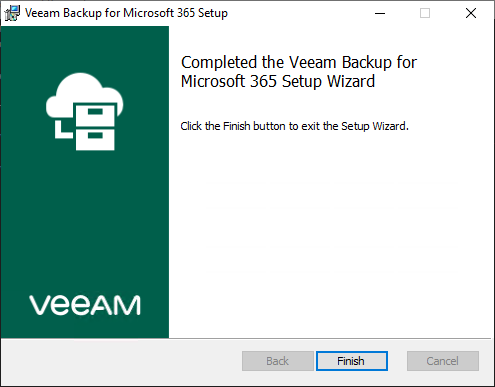
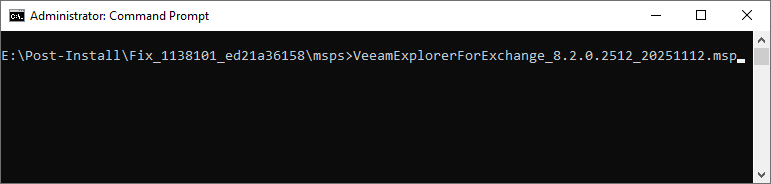
10.Run VeeamExplorerForExchange_8.2.0.2512_20251112.msp.
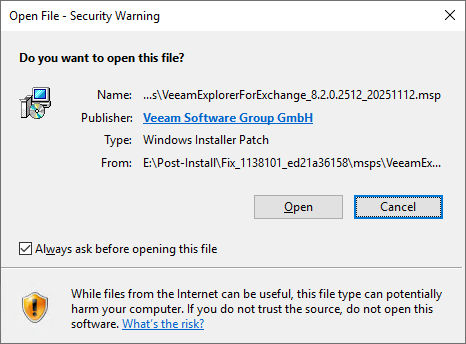
11.Click Open on the Security Warning page.
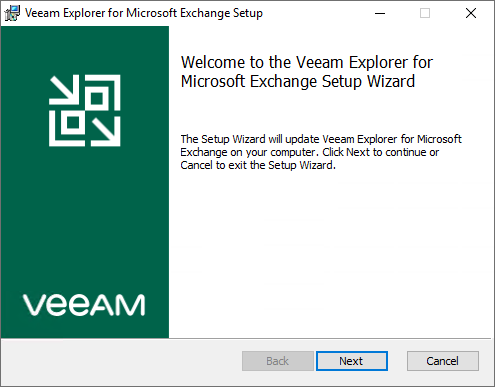
12.Click Next on the Welcome page.
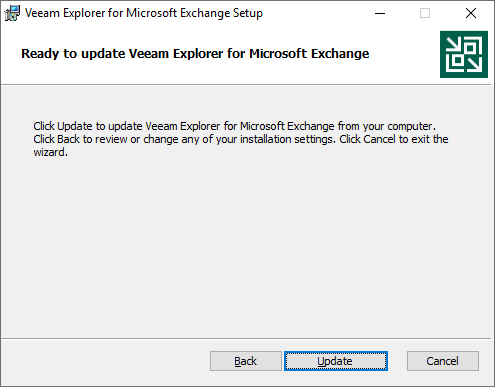
13.Click Update on the Ready to update Veeam Explorer for Microsoft Exchange page.
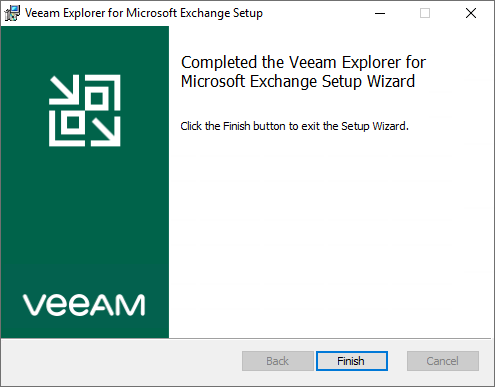
14.Click Finish on the Completed the Veeam Explorer for Microsoft Exchange Setup Wizard page.
15.Run VeeamExplorerForSharePoint_8.2.0.2512_20251112.msp.
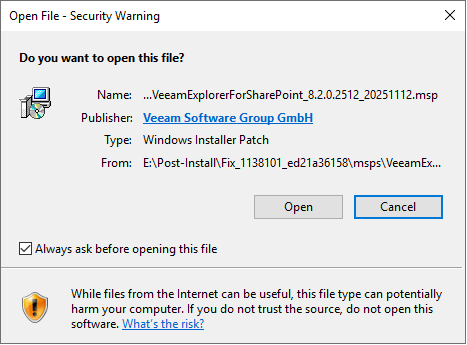
16.Click Open on the Security Warning page.
17.Click Next on the Welcome page.
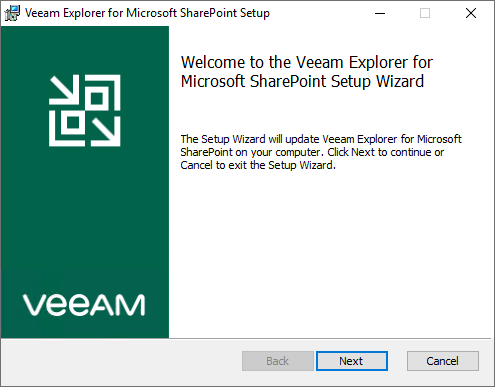
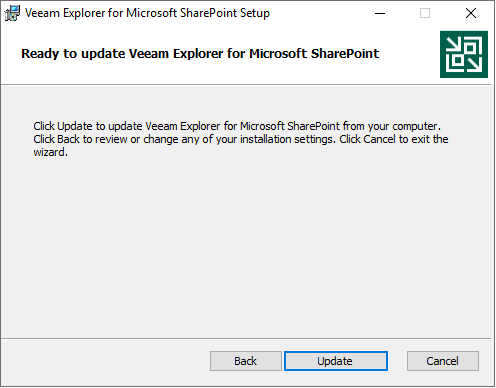
18.Click Update on the Ready to update Veeam Explorer for Microsoft SharePoint page.
19.Click Finish on the Completed the Veeam Explorer for Microsoft SharePoint Setup Wizard page.

20.Run VeeamExplorerForTeams_8.2.0.2512_20251112.msp.
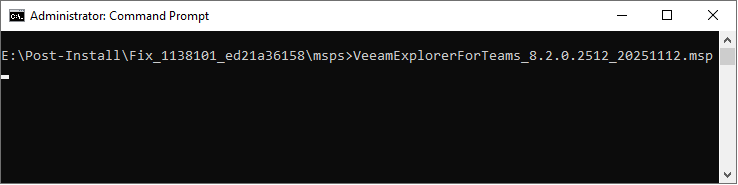
21.Click Open on the Security Warning page.

22.Click Next on the Welcome page.
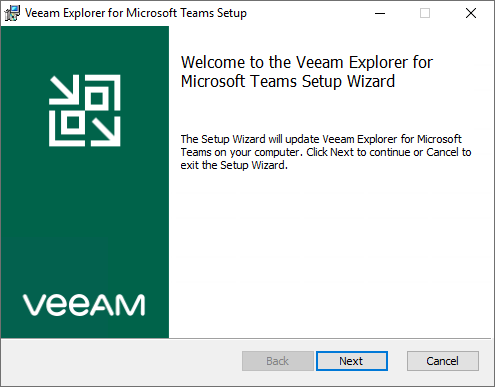
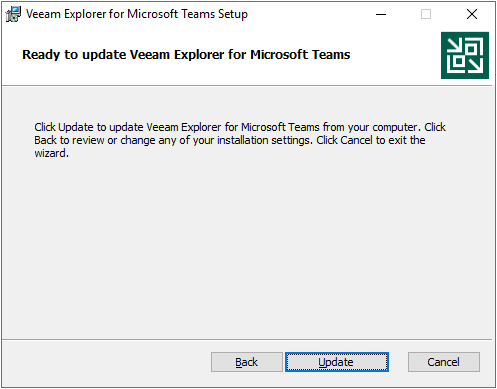
23.Click Update on the Ready to update Veeam Explorer for Microsoft Teams page.
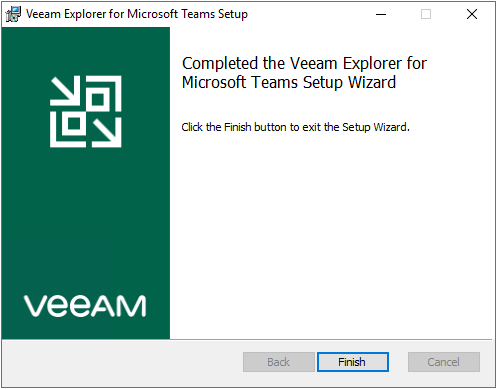
24.Click Finish on the Completed the Veeam Explorer for Microsoft Teams Setup Wizard page.
25.Update all remote proxies if you are using them.
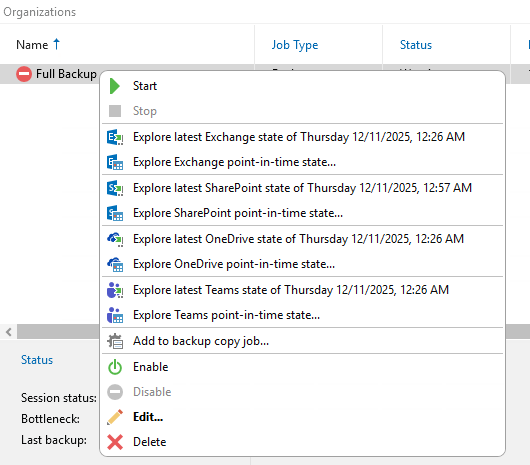
26.Enable all Jobs.
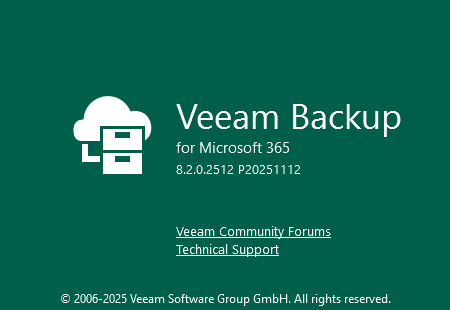
27.Verify the Veeam Backup for Microsoft 365 version from Veeam Backup for Microsoft 365 console (Help |Abut).

28.It will show 8.2.0.2512 P20251112.
I hope you enjoy this post.
Cary Sun
X: @SifuSun
Web Site: carysun.com
Blog Site: checkyourlogs.net
Blog Site: gooddealmart.com
Amazon Author: Amazon.com/author/carysun
About Post Author