
This article explains how to set up Veeam Backup for Microsoft 365 to protect only the most recent versions of Teams, OneDrive, and SharePoint files. This helps businesses reduce the risk of Microsoft 365 throttling, speed up backup processing, and use less storage. Exchange mailbox data is unaffected by this setting.
Note:
This is intended for Veeam Backup for Microsoft 365 customers who upgraded from a previous version or for Microsoft 365 tenants that were already protected before this default was implemented and may wish to adjust their current setup.

1.Ensure the environment is running at least Veeam Backup for Microsoft 365 v8.4.
2.Login to the Veeam Backup for Microsoft 365 management server.
3.Open Veeam Backup for Microsoft 365 Connect.
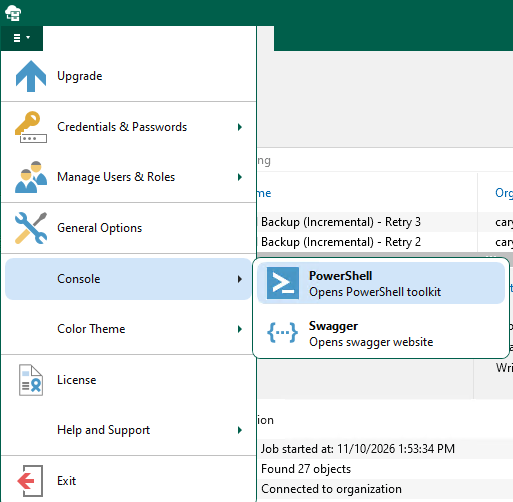
4.Expand Console from the main menu and select PowerShell.
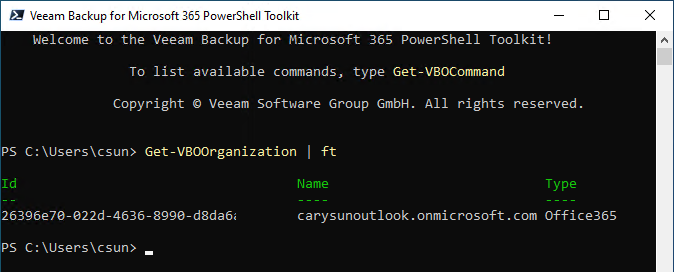
5.Run the cmdlet below to display all Microsoft organizations that are added to the Veeam Backup for Microsoft 365 infrastructure,
Get-VBOOrganization | ft
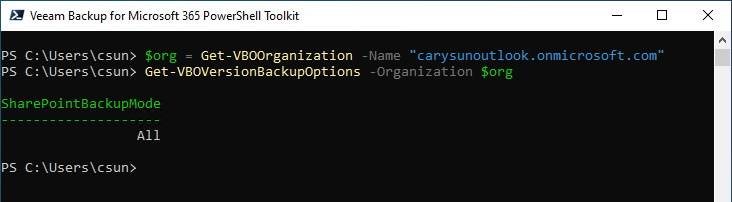
6.Run the command below to display the current Version Protection mode for a specific Organization.
$org = Get-VBOOrganization -Name "Your Organization Name"

Get-VBOVersionBackupOptions -Organization $org
7.Run the command below to set Protection to Latest Version Only.
Set-VBOVersionBackupOptions -Organization $org -SharePointBackupMode Latest

I hope you enjoy this post.
Cary Sun
X: @SifuSun
Web Site: carysun.com
Blog Site: checkyourlogs.net
Blog Site: gooddealmart.com
Amazon Author: Amazon.com/author/carysun
About Post Author