
Veeam released the Backup & Replication v13.1.1.18 on Aug 13, 2026.
It resolved issues including Veeam Software Appliance, Object Storage Repository, Guest Processing, Cloud Connect and Veeam Agents.
The detailed information is in the link below.
It also resolved Vulnerabilities in Veeam Backup and Replication 13.1.
CVE-2026-58070
A vulnerability that causes guest OS credentials used for Application Aware processing to be recorded in cleartext in logs on the guest machine.
Severity: Medium
CVSS v4.0 Score: 6.8
Affected Deployment Type: Windows-based Veeam Backup & Replication | Veeam Software Appliance
Source: Reported through HackerOne.
The detailed information is in the link below.
1.Login to the Veeam Backup Enterprise Manager machine.
2.Sign in to your Veeam account and download the Veeam Backup and Replication v13 software.
https://www.veeam.com/products/veeam-data-platform/essentials-download.html?tab=vbe-download
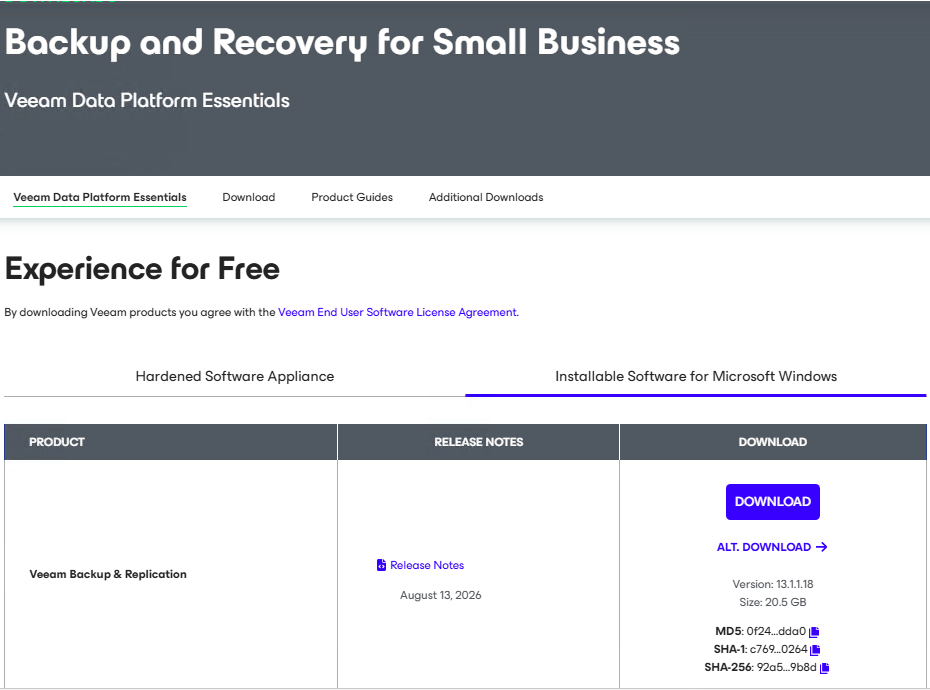
3.Mount the VeeamBackup&Replication_13.1.1.18_20260812 file.
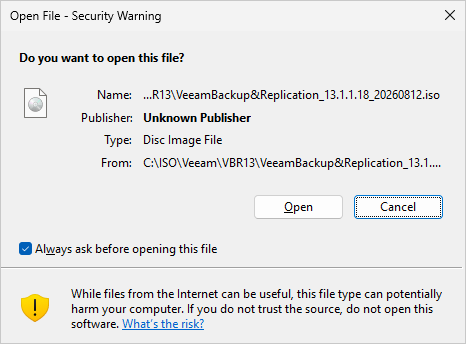
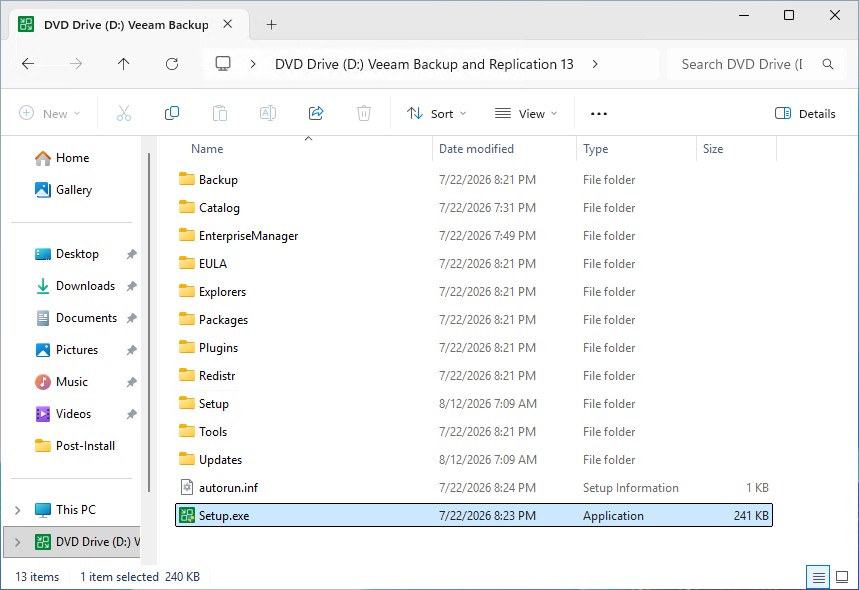
4.Run Setup.exe.
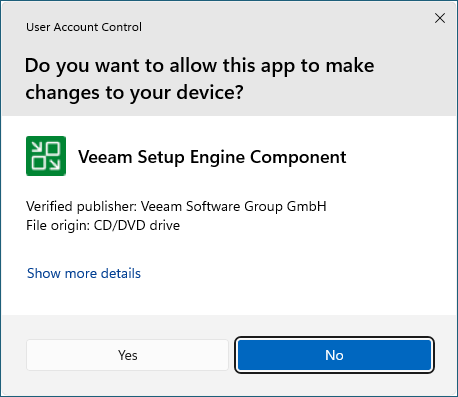
5.Click Yes on the User Account Control.
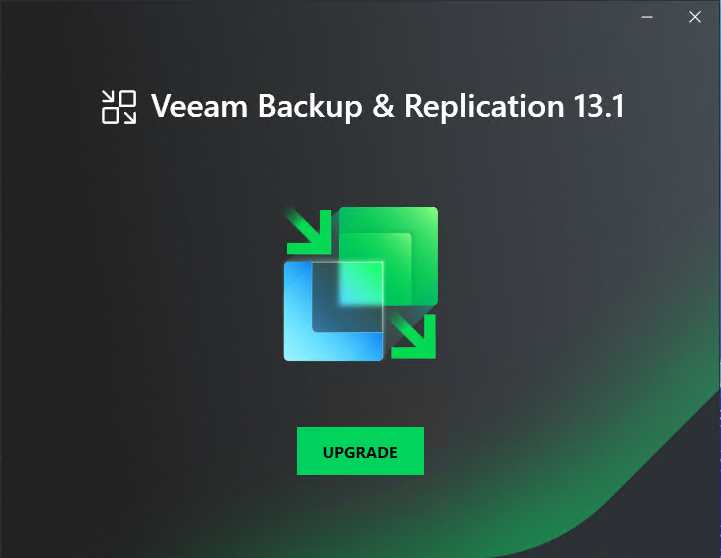
6.Click Upgrade on the Veeam Backup & Replication 13.1.
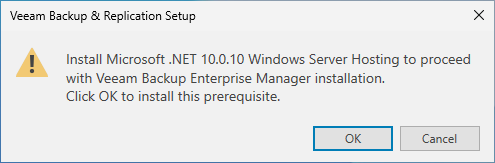
7.Click OK to install Microsoft .NET 10.0.10 Windows Server Hosting prerequisite.
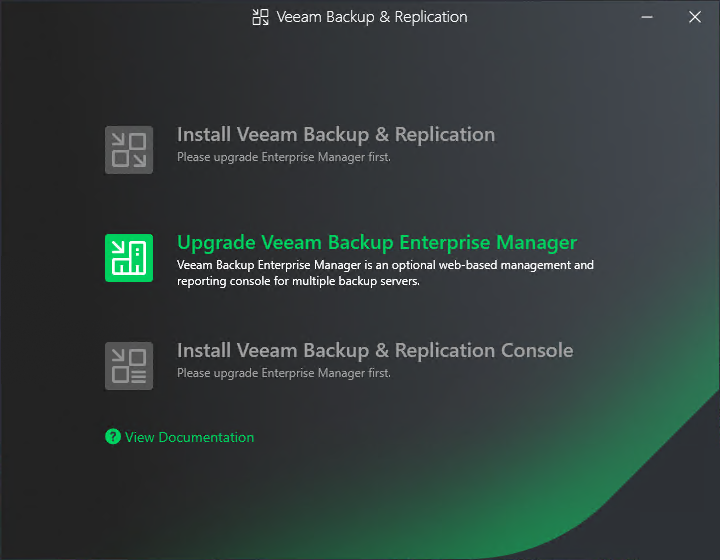
8.Select Upgrade Veeam Backup Enterprise Manager.
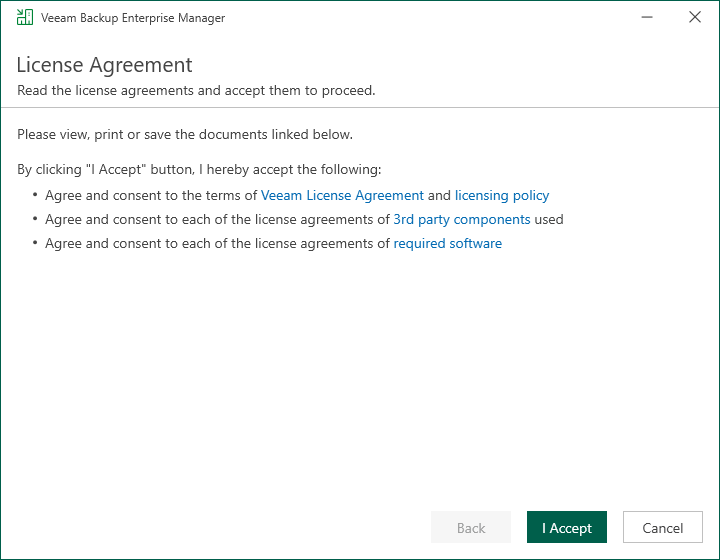
9.Click I Accept on the License Agreement page.
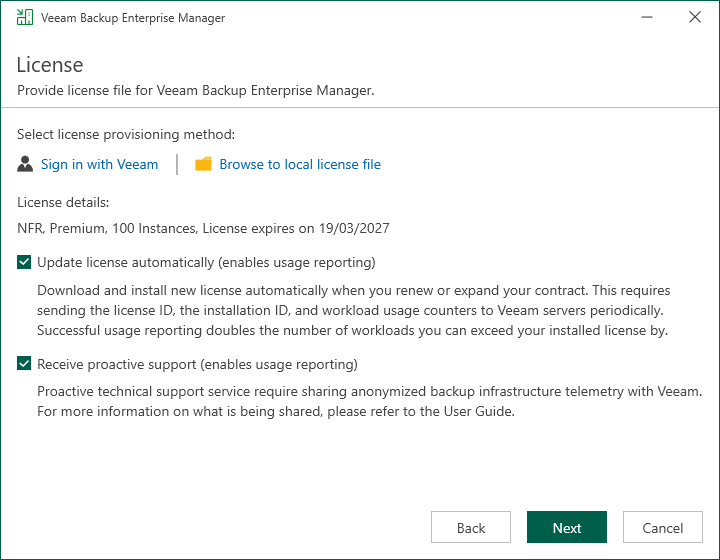
10.The setup wizard will inform you if a valid license is installed on the machine. In this case, you can skip the Provide License step and click Next.
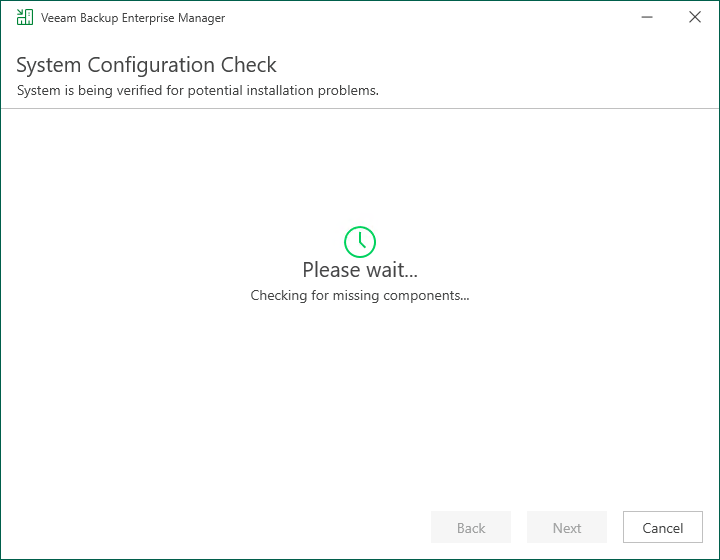
11.Veeam Backup Enterprise Manager will check system configuration requirements automatically.
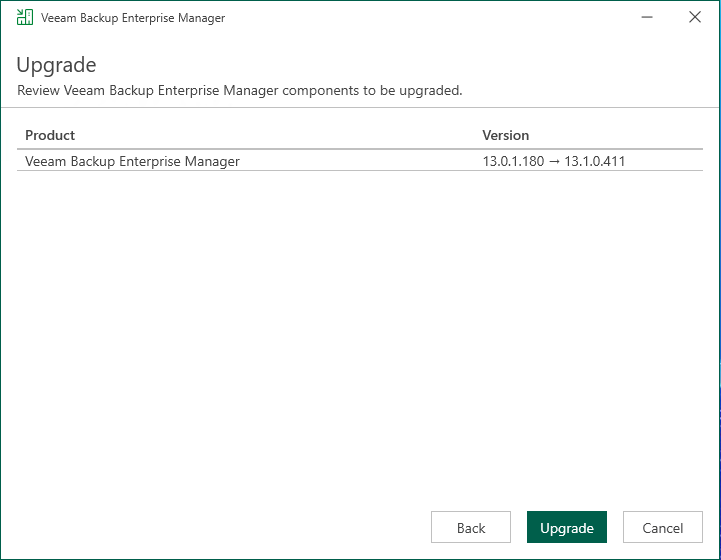
12.Click Upgrade on the Upgrade page.
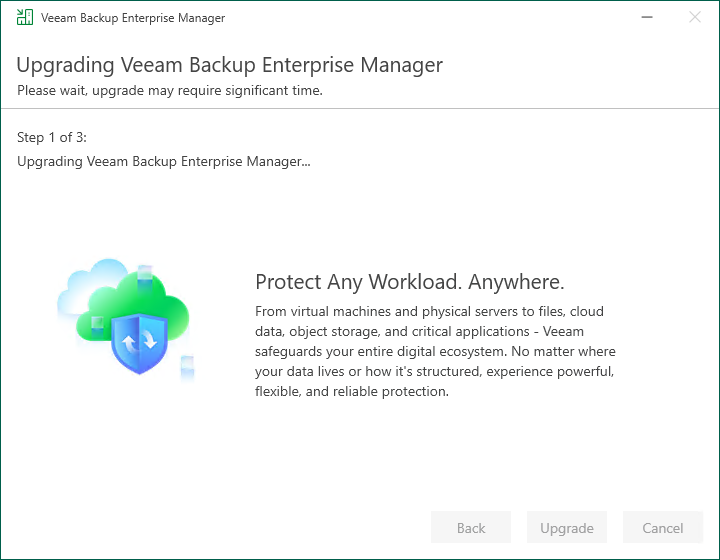
13There are three steps to upgrade Veeam Backup Enterprise Manager.
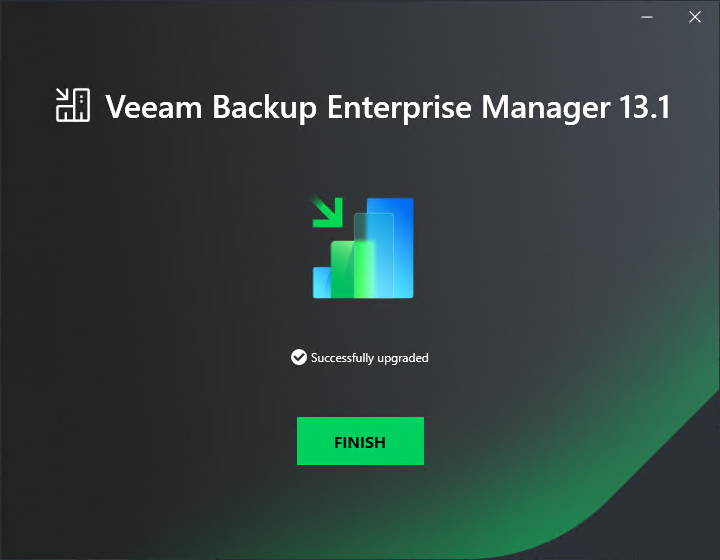
14.Click Finish on the Veeam Backup Enterprise Manager 12.3 Successfully upgraded page.
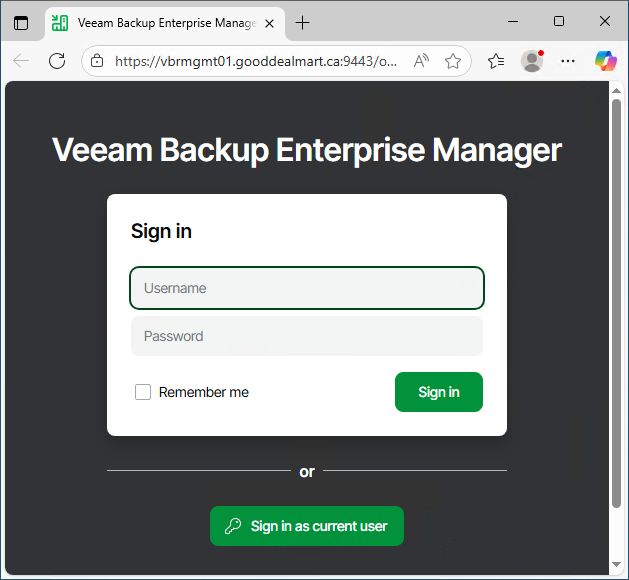
15.Open Veeam Backup Enterprise Manager.
16.On the Veeam Backup Enterprise Manager Sign in page, click Sign in as current user (or enter the user name and password).
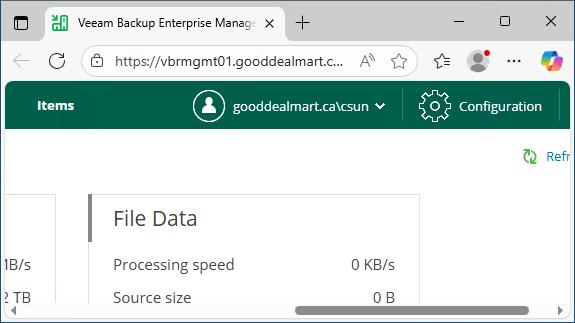
17.Click Configuration.
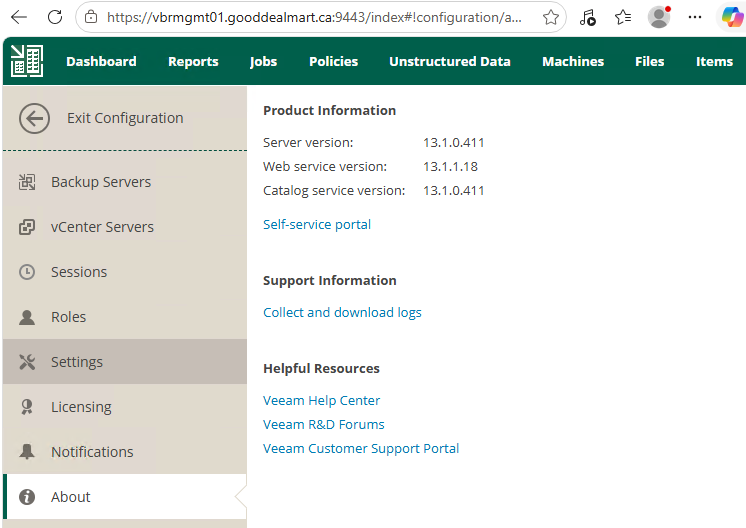
18.Click About and ensure Build is 13.1.1.18.
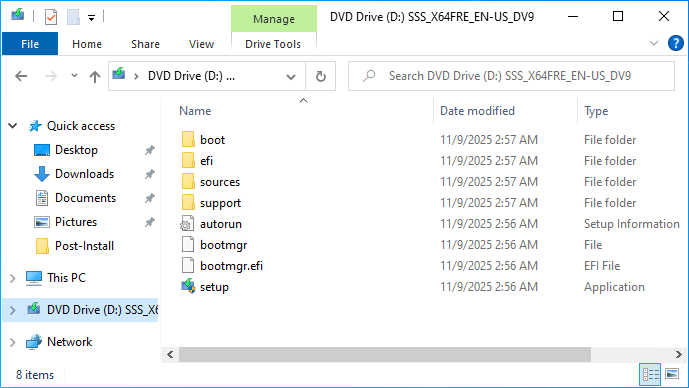
19.Mount the Microsoft Windows Server 2025 ISO image file.
20.Run setup.exe.
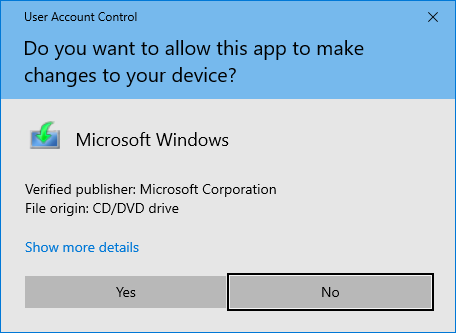
21.Click Yes on the User Access Control page.
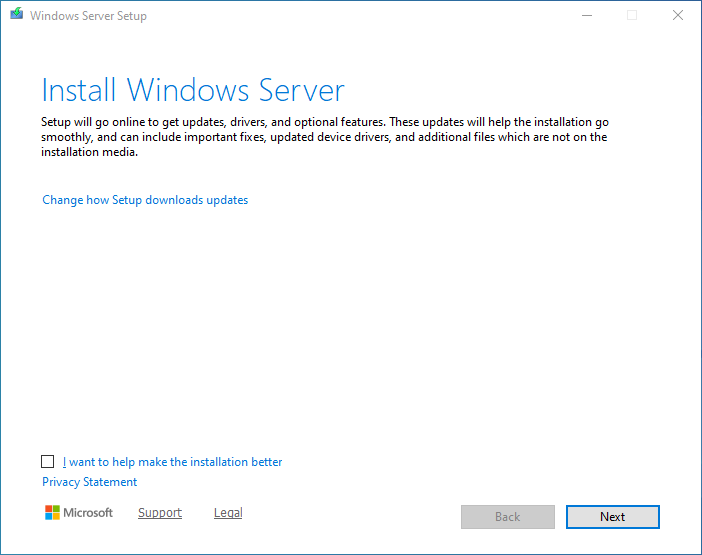
22.Click Next on the Install Windows Server page.
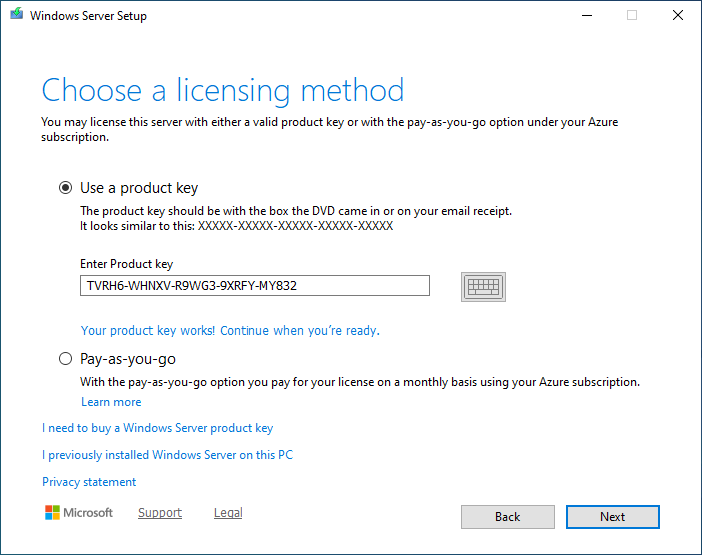
23.Select Use a product key on the Choose a licensing method page.
24.Enter the product key and click Next.
Note:
The Windows Server 2025 product key need to match the existing version.
25.Select Windows Server 2025 Standard (Desktop Experience) on the Select Image page and click Next.
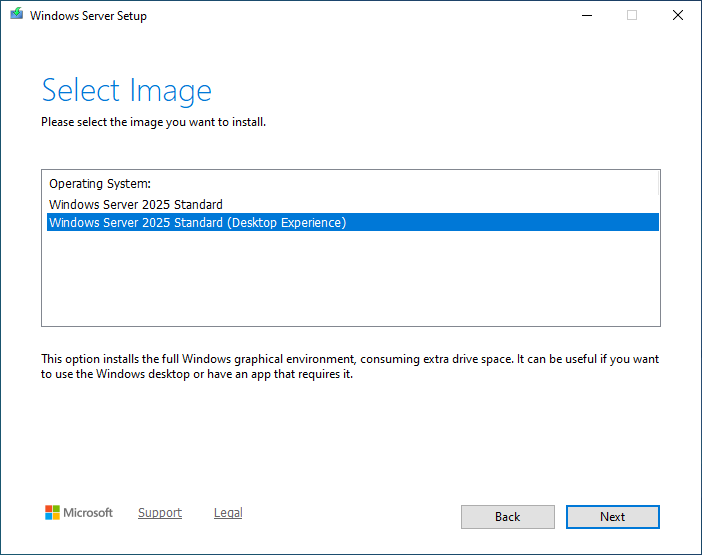
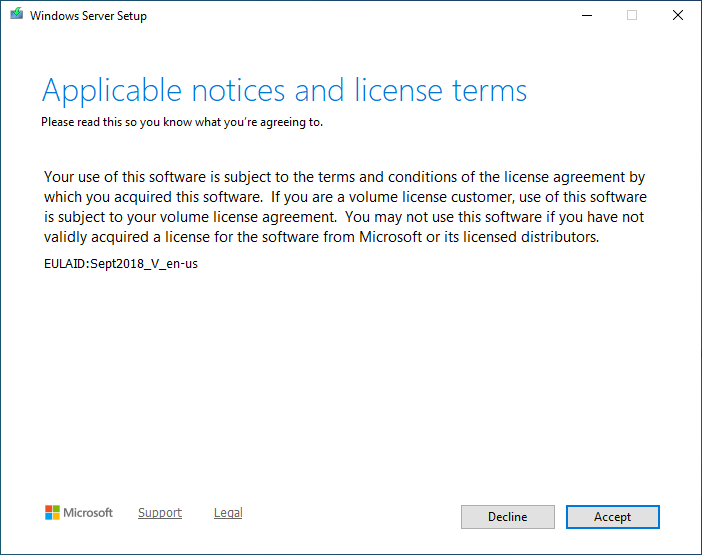
26.Click Accept on the Applicable notices and license terms page.
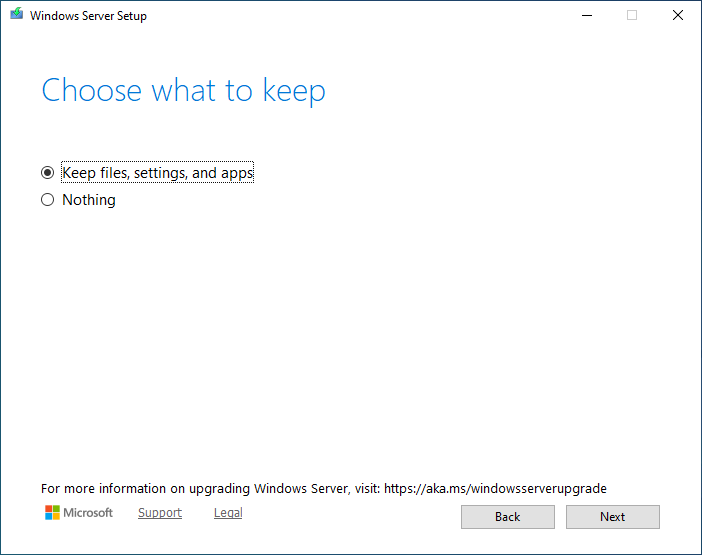
27.select Keep files, settings, and apps on the Choose what to keep page and click Next.
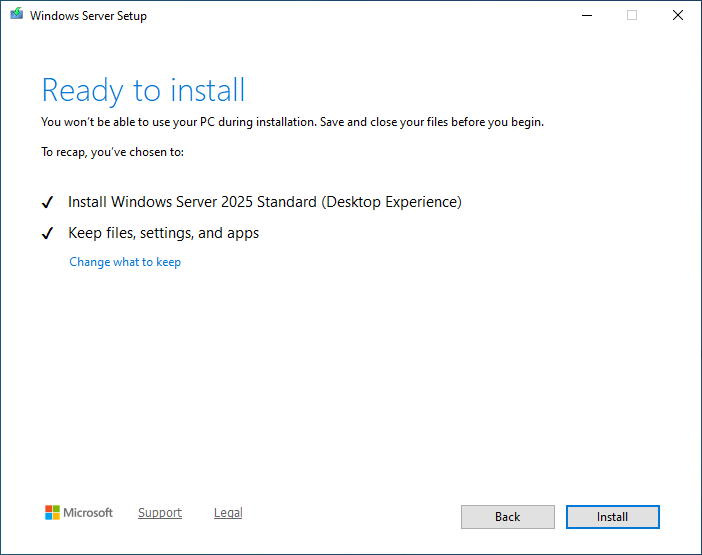
28.Click Install on the Ready to install page.
29.The server will reboot after install.
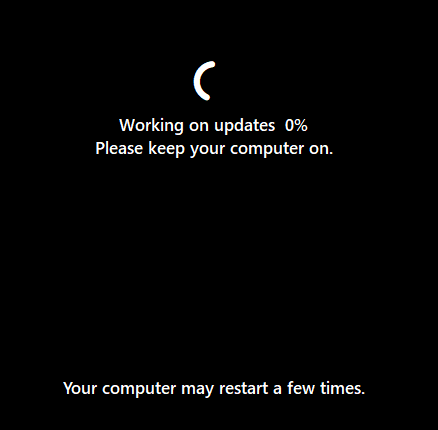
30.Open Veeam Backup Enterprise Manager.
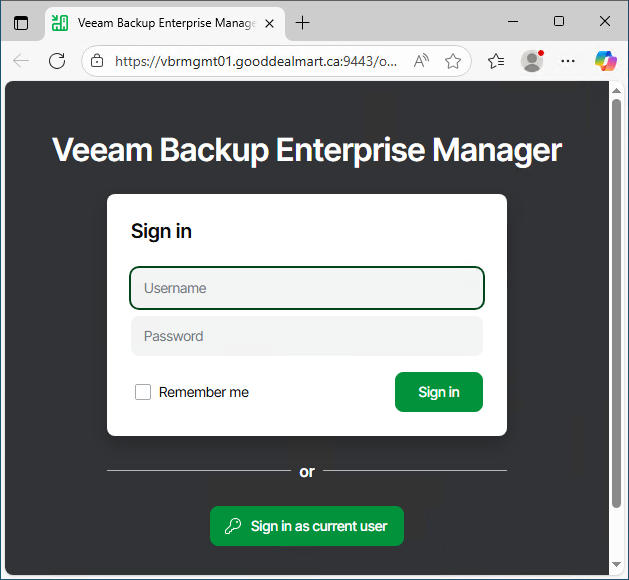
31.On the Veeam Backup Enterprise Manager Sign in page, click Sign in as current user (or enter the user name and password).
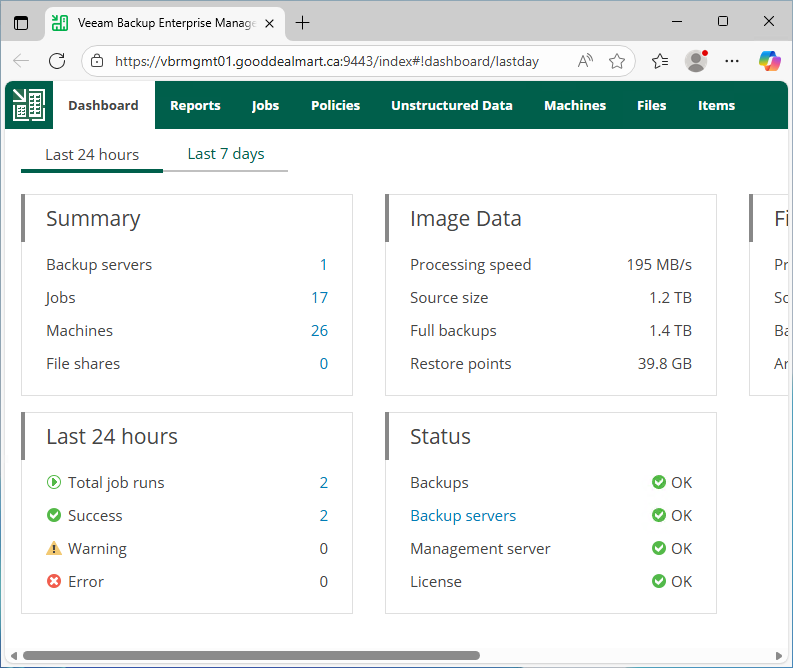
32.Ensure all functions are working without issues.
I hope you enjoy this post.
Cary Sun
X: @SifuSun
Web Site: carysun.com
Blog Site: checkyourlogs.net
Blog Site: gooddealmart.com
Amazon Author: Amazon.com/author/carysun
About Post Author